
Virtual Grid
The data grid is the primary interface for viewing and interacting with timeline data. It uses virtual scrolling backed by SQLite pagination to handle millions of rows without performance degradation.
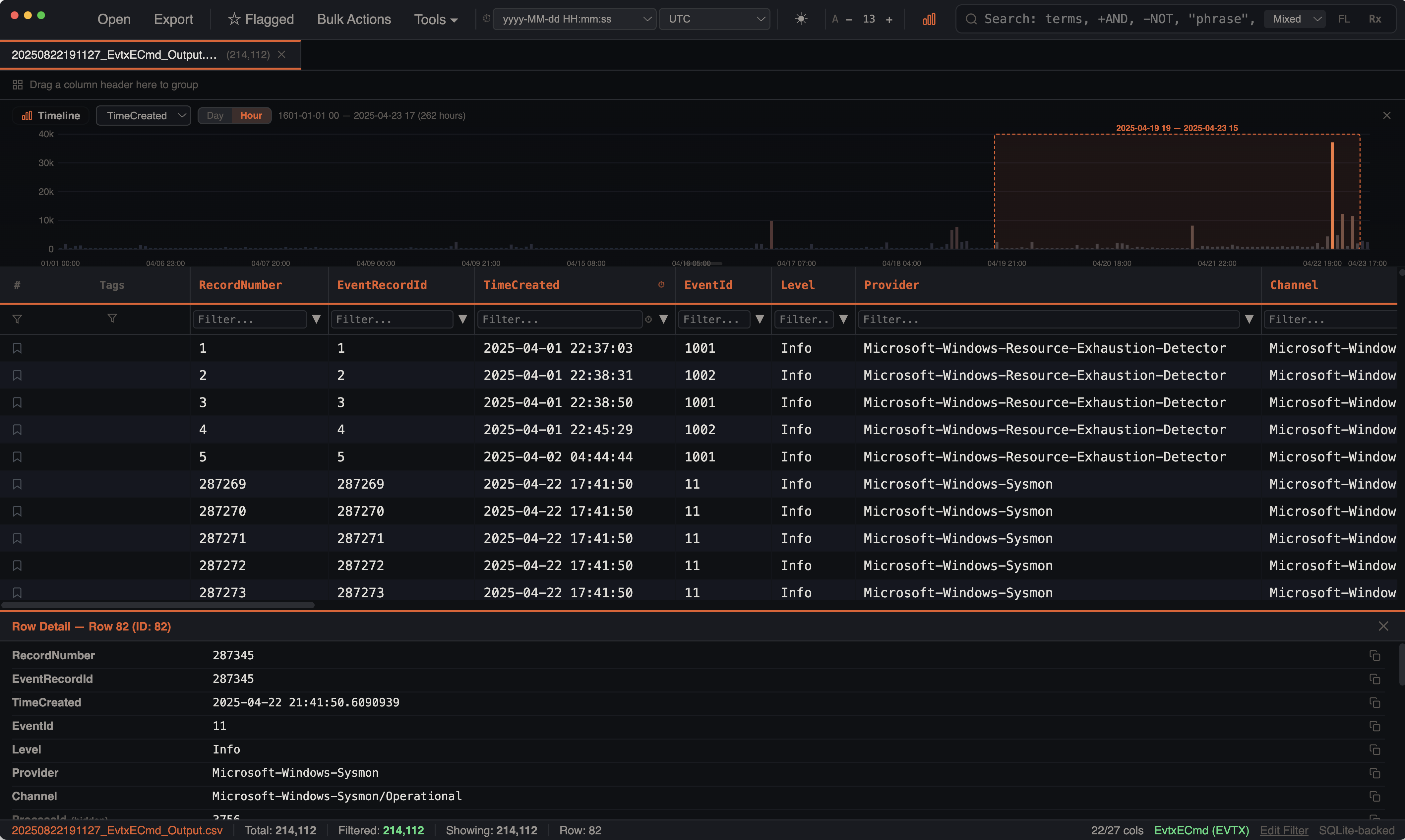
Menu Bar
The menu bar provides access to all application features through five dropdown menus with glassmorphism styling.
File
| Item | Shortcut | Description |
|---|---|---|
| Open | ⌘O | Open a file via the system dialog |
| Export | ⌘E | Export filtered data as CSV, TSV, XLSX, or XLS |
| Save Session | ⌘S | Save all tabs, filters, bookmarks, tags, and color rules to a .tle file |
| Load Session | ⇧⌘O | Restore a previously saved session |
| Open Recent | Submenu showing the last 10 opened files with full paths | |
| Close Tab | ⌘W | Close the active tab |
| Close All Tabs | Close every open tab | |
| Exit | Quit the application |
View
| Item | Description |
|---|---|
| Columns | Open the Column Manager to show, hide, and reorder columns |
| Color Rules | Create and manage conditional formatting rules |
| Tags | View and manage all tags across the active tab |
| Filter Presets | Save and load named filter configurations |
| Edit Filter | Open the advanced filter editor for the active tab |
| Merge Tabs | Combine multiple tabs into a unified super-timeline |
Actions
| Item | Description |
|---|---|
| Show Flagged Only | Toggle between all rows and bookmarked-only view |
| Select All | Select all rows (checkbox) |
| Deselect All | Clear checkbox selection |
| Invert Selection | Toggle the selection state of every row |
| Copy Selected Rows | Copy selected rows as tab-separated text to clipboard |
| Export Selected Rows | Export selected rows as CSV via save dialog |
| IOC Matching | Scan timeline data for Indicators of Compromise |
| Bulk Tag / Bookmark | Apply tags or bookmarks to rows by time range |
| Pivot ±N Minutes | Filter to a time window around the selected row |
| Find Duplicates | Identify repeated values in any column |
Tools
| Item | Description |
|---|---|
| Stack Values | Frequency analysis of unique values in any column |
| Gap Analysis | Detect periods of unusual inactivity in the timeline |
| Log Sources | Gantt-style heatmap of log source coverage across time |
| Burst Detection | Identify abnormal spikes in event volume |
| Process Inspector | Parent-child process hierarchy with MITRE ATT&CK detection |
| Lateral Movement Tracker | Network graph of host-to-host logon activity with attack pattern detection |
| Persistence Analyzer | Automated detection of 30+ persistence techniques with risk scoring |
| Generate Report | Create an HTML investigation report from bookmarks and tags |
Help
| Item | Shortcut | Description |
|---|---|---|
| Quick Help | In-app guide covering supported formats, search modes, and shortcuts | |
| Keyboard Shortcuts | ⌘/ | Reference card of all keyboard shortcuts |
| Website | Open the IRFlow Timeline documentation site | |
| About IRFlow Timeline | Version info, author, and social links |
Toolbar Controls
In addition to the menu bar, the toolbar contains:
- Date/time format selector and timezone selector
- Theme toggle (dark/light)
- Font size controls (decrease/increase)
- Histogram toggle — show or hide the timeline histogram visualization
How It Works
Rather than loading all rows into memory, the grid maintains a sliding window of 10,000 rows centered on your scroll position. As you scroll, new rows are fetched from SQLite using LIMIT/OFFSET queries with a 2,000-row prefetch threshold. This means:
- Memory usage stays constant regardless of dataset size — only ~10K rows in the JS heap at any moment
- Scrolling is smooth with 20-row overscan padding above and below the viewport and
requestAnimationFrame-throttled scroll handling - Initial load is instant — no waiting for millions of rows to render
- Skeleton placeholders appear briefly during fast scrolling while the next data window loads
Column Operations
Sorting
Click any column header to sort. Click again to toggle ascending/descending, click a third time to clear. A sort indicator appears on the active column.
Sorting is type-aware and handled entirely in SQL:
| Column Type | Sort Method |
|---|---|
| Timestamp | Custom sort_datetime() function — handles ISO, US date, Unix seconds/milliseconds, Excel serial dates, and 12-hour AM/PM formats |
| Numeric | CAST(column AS REAL) — detected automatically when 80%+ of sampled values are numeric |
| Text | COLLATE NOCASE — case-insensitive alphabetical |
Indexes are created lazily on first sort for optimal performance. Background async indexing builds indexes for all columns after import without blocking the UI.
Resizing
Drag the right edge of any column header to resize it. Minimum width is 60px. Column widths are preserved per tab and saved in sessions.
Pinning
Cmd+Click a column header and select Pin Left to pin it to the left side of the grid. Pinned columns use sticky positioning so they stay visible as you scroll horizontally — useful for keeping timestamp or event name columns always in view.
Hiding / Showing
Open the Column Manager from the toolbar to:
- Hide columns you don't need
- Show previously hidden columns
- Show All / Hide All with one click
- Reorder columns via drag-and-drop
- Reset to default column order
Empty columns are auto-hidden on import so your grid starts clean.
Reordering
Drag column headers to rearrange them directly in the grid. Column order is persisted per tab and saved in sessions.
Auto-Fit
Cmd+Click a column header and select Best Fit to auto-size the column width to its content with 10% padding.
Column Quick Stats
Cmd+Click a column header and select Column Stats to see value distribution, fill rate, and type-specific statistics for that column.
Row Selection
Each row has a checkbox for multi-selection, plus these interaction methods:
- Checkbox — click the checkbox cell to toggle selection without affecting the detail panel
- Single click — selects a row and displays it in the detail panel
- Shift+Click — selects a range of rows from the last clicked row to the current
- Cmd+Click — toggles individual rows in/out of the selection without clearing existing selections
- Arrow Up/Down — navigates selection with auto-scroll to keep the selected row visible
The header row includes a master checkbox (select all / deselect all). In grouped view, each group header has its own checkbox to select or deselect all rows within that group (shows indeterminate state when partially selected).
Bulk Selection Actions
Available from the Actions menu:
- Select All — selects all rows (works in both normal and grouped mode)
- Deselect All — clears the selection
- Invert Selection — toggles the selection state of every row
- Copy Selected Rows (
Cmd+C) — copies selected rows as tab-separated text to the clipboard - Export Selected Rows — exports selected rows as CSV via a save dialog
Selection state (selected rows, last clicked row, scroll position) is preserved per tab — switching tabs and back restores exactly where you left off.
The status bar shows "Row: X" for single selection or "N rows selected" for multi-select, along with the full file path of the active tab.
Detail Panel
Clicking a row opens a resizable detail panel at the bottom of the window. It displays all column values for the selected row in a readable format with per-value copy buttons, which is especially useful when rows contain long values that are truncated in the grid. Drag the top edge to resize (80px–600px).
Cell Rendering
Color Rules
Rows are colored by the first matching color rule. Rules support four conditions: contains, equals, starts with, and regex. Rules are pre-compiled once for performance — regex patterns are not re-created per row.
Color priority: selection highlight > color rule > bookmark highlight > alternating row stripes.
Eight built-in presets are available for common forensic patterns (PowerShell, Mimikatz, LSASS, Critical events, etc.).
Search Highlighting
When search is active in highlight mode, matching terms are marked with yellow/amber background within each cell. Supports regex and multi-word mixed/AND search term highlighting.
IOC Highlighting
After running an IOC scan, matched indicator values are highlighted inline in the grid with orange semi-transparent background and bold text. When both search and IOC highlights are active, they use distinct colors — orange for IOC matches, amber for search matches. IOC patterns are sorted longest-first to prevent shorter substrings from stealing matches. An "IOC Highlights" badge in the status bar shows the count and can be clicked to clear.
Timestamp Formatting
Timestamp columns are formatted according to your selected datetime format and timezone setting. All other columns are rendered as-is with text truncation and ellipsis overflow.
Grouped View
Group rows by any column using the context menu or by dragging column headers to the group bar. Multiple grouping levels are supported for hierarchical views.
Groups display:
- Collapsible headers showing the value and row count per group
- Multi-level nesting — each expand fetches the next grouping level from SQLite
- Leaf-level data — expanding the deepest group loads actual rows (batched at 100K) with a "Load More" button for large groups
- Clear button to remove all grouping at once
Filtering
Per-Column Text Filters
A filter row below the column headers provides a text input per column. Typing filters using case-insensitive SQL LIKE matching. Filters are debounced at 500ms to avoid excessive queries while typing.
Checkbox Filters
Cmd+Click a column header to open a checkbox filter showing the top 25 values for that column. Search within the value list to find specific entries. Toggle values on/off to include or exclude them.
Disable Individual Filters
Active filters can be individually toggled on/off without removing them, useful for A/B comparison while preserving your filter setup.
Filter Caching
Query results are cached per unique filter configuration (up to 4 cache entries per tab). This enables instant toggling between highlight and filter mode, and fast tab switching.
Context Menu
The context menu uses a macOS-style glass/blur aesthetic with inline SVG icons for each action.
Open via: Cmd+Click a column header.
Column Header Menu
| Icon | Action | Description |
|---|---|---|
| Pin | Pin / Unpin | Pin column to the left side |
| Eye-slash | Hide Column | Remove column from view |
| Arrows | Best Fit | Auto-size column to content |
| Undo | Reset Widths | Reset all column widths to default |
| Up arrow | Sort Ascending | Sort A→Z / oldest→newest |
| Down arrow | Sort Descending | Sort Z→A / newest→oldest |
| Stacked bars | Stack Values | Open value frequency analysis |
| Bar chart | Column Stats | Value distribution and type statistics |
Row / Cell (Cmd+Click)
- Copy Cell value
- Copy Row as TSV
- Bookmark / Remove Bookmark
- Add Tag
- Bulk Tag / Untag selected rows
Find Duplicates
Open Actions > Find Duplicates to find repeated values in any column. Select a column from the dropdown and click "Find Duplicates" to scan for values that appear more than once. Results show the duplicate value and occurrence count (capped at 100 displayed). Click "Filter to Duplicates" to apply a checkbox filter on the selected column showing only rows with duplicate values.
Bookmarks and Tags
Bookmarks
Click the star icon in the bookmark column to flag important rows. Bookmarked rows receive a subtle orange background overlay. The status bar shows a "Flagged: N" count. Use the bookmarked-only filter to show only flagged rows.
Tags
The Tags column is a full first-class grid column displaying color-coded tag pills per row. It supports sorting, text filtering, checkbox filtering, stacking, and column stats — just like any data column. Add tags via the context menu with tag name suggestions. Tags support bulk operations — select multiple rows and apply or remove tags in one action. See Bookmarks & Tags for full details.
Performance Characteristics
| Metric | Value |
|---|---|
| Row height | 26px fixed |
| Cached window | 10,000 rows centered on scroll position |
| Prefetch threshold | Re-fetch when within 2,000 rows of cache edge |
| Overscan | 20 rows above/below viewport |
| Query debounce | 500ms for search/filter changes |
| Scroll fetch debounce | 50ms for scroll-driven window fetches |
| Search result cache | Up to 4 entries per tab |
| Count cache | Per filter signature, invalidated on bookmark/tag changes |
| Index creation | Background async — all columns indexed after import without blocking UI |
| Stale request prevention | Monotonic fetch IDs discard out-of-order responses |
| Min column width | 60px |
| Group batch size | 100,000 rows per expand |