
Search & Filtering
IRFlow Timeline provides multiple search modes and filter types to help you find exactly what you need in massive timelines.
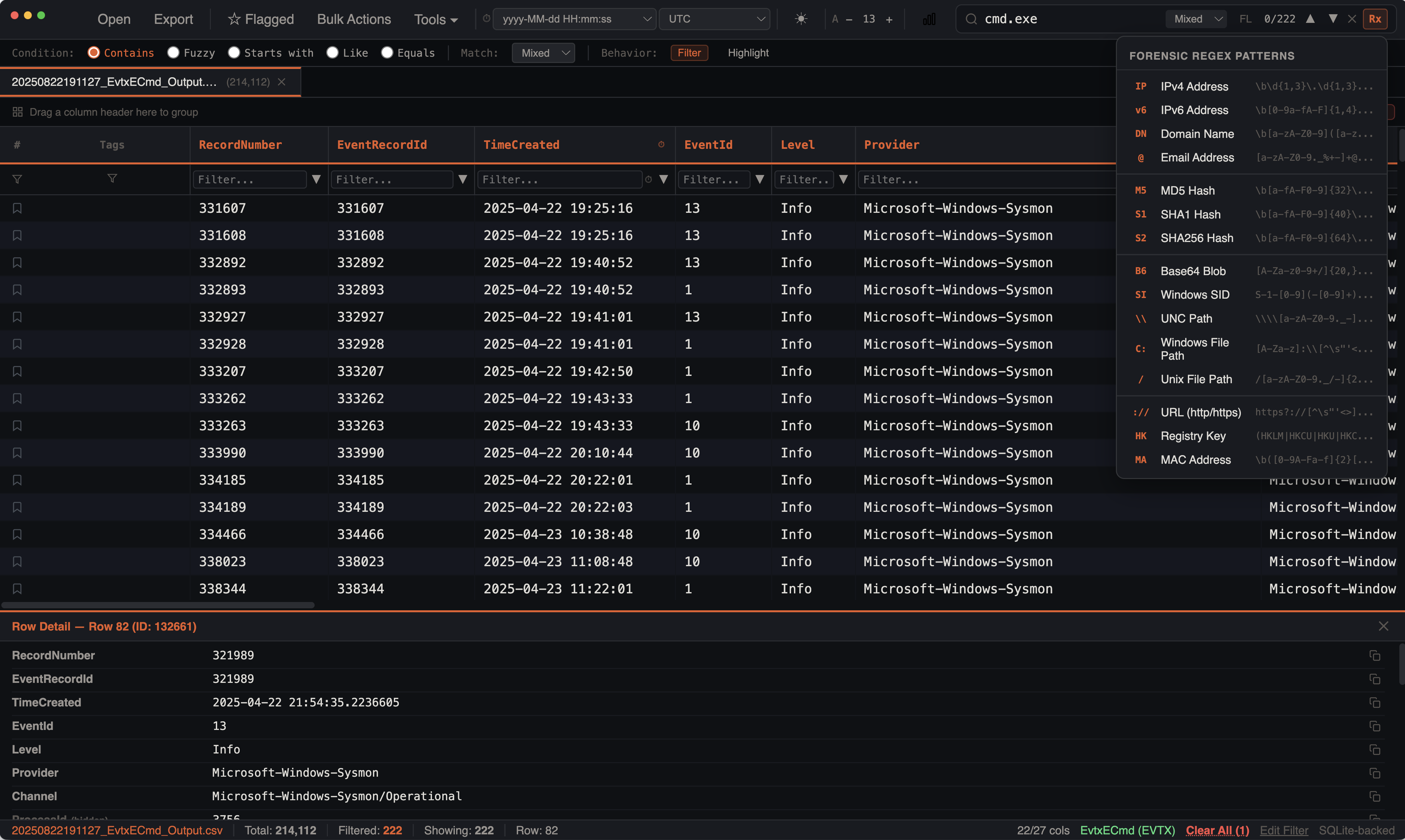
Search Modes
Access the search bar with Cmd+F. Select a search mode from the dropdown next to the search input.
Mixed (Default)
Combines full-text search and substring matching for the broadest results. Runs an FTS query first, then supplements with LIKE matching for partial terms.
Best for: General-purpose searching when you're not sure of exact phrasing.
FTS (Full-Text Search)
Uses SQLite FTS5 for word-level tokenized search. Matches whole words and supports prefix queries.
powershell          → matches "powershell.exe", "PowerShell"
"lateral movement"  → matches the exact phrase
power*              → prefix match: powershell, powerpoint, etc.
Best for: Fast keyword searches across large datasets.
FTS Index
The FTS index is built lazily on first search. Building processes 100,000 rows per chunk asynchronously so the UI remains responsive. If the index isn't ready yet, the search transparently falls back to LIKE mode.
LIKE (Substring)
Case-insensitive substring matching using SQL LIKE '%term%'.
cmd.exe     → matches any cell containing "cmd.exe"
\temp\      → matches paths containing "\temp\"
Best for: Exact substring matching, file paths, specific strings.
Fuzzy
N-gram similarity matching that tolerates typos and minor variations.
powrshell   → still matches "powershell"
mimkatz     → still matches "mimikatz"
Best for: When you're unsure of exact spelling or dealing with obfuscated strings.
Regex
Full regular expression pattern matching.
\d{1,3}\.\d{1,3}\.\d{1,3}\.\d{1,3}   → matches IPv4 addresses
(?i)invoke-.*                           → matches PowerShell cmdlets
Best for: Complex pattern matching, IP addresses, structured data extraction.
Filter Types
Column Filters
Click the filter icon on any column header to open column-specific filtering:
- Text filter — type to match values within that column
- Filters are additive — multiple column filters create an AND condition
Checkbox Filters
For columns with a manageable number of unique values:
- Click the filter icon on a column header
- Switch to the checkbox tab
- Select or deselect specific values to include/exclude
Useful for filtering by event type, log source, computer name, etc.
Date Range Filters
For timestamp columns:
- Click the filter icon on a timestamp column
- Switch to the date range tab
- Select a start date/time and end date/time
- Only events within the range are shown
You can also set date ranges by brush-selecting on the Histogram.
Advanced Filters
Open View > Edit Filter for SQL WHERE-style conditions:
- Build complex filters with AND/OR logic
- Combine multiple conditions on different columns
- Use operators: equals, not equals, contains, not contains, starts with, ends with, greater than, less than, is empty, is not empty, regex
- Save and load filter presets
Tag Filters
Filter rows by their assigned tags:
- Show only rows with a specific tag
- Combine with other filters for targeted analysis
Bookmark Filter
Toggle Cmd+B to show only bookmarked rows. Useful for reviewing rows you've already flagged as important.
Cross-Tab Search
Use Cmd+Shift+F to search across all open tabs simultaneously. Results show the match count per tab, letting you quickly identify which timelines contain your search term.
Search Caching
IRFlow Timeline caches the 4 most recent search queries per tab. When switching between tabs or toggling between search terms, cached results are returned instantly without re-querying the database.
Search Highlighting
Toggle the highlight button in the search bar to visually highlight matching terms within the grid cells. Matched text is marked with a yellow/amber background for easy identification.
When IOC Matching highlights are also active, both work simultaneously — IOC matches appear in orange and search matches appear in amber, so you can distinguish between the two at a glance.