
Bookmarks & Tags
Bookmarks and tags are the core annotation tools for building your investigation narrative within IRFlow Timeline.
Bookmarks
Bookmarks let you flag individual rows as important for later review and reporting.
Adding Bookmarks
- Click the star icon on any row to toggle its bookmark
Cmd+Clicka row and select Bookmark- Bookmarks are stored per-tab in the SQLite database
Bulk Bookmarking
- Open Actions > Bulk Tag / Bookmark to bookmark or tag rows by time range
- Or
Cmd+Clicka row and use the bookmark option in the context menu
Viewing Bookmarks
- Toggle
Cmd+Bto show only bookmarked rows - The tab badge shows the bookmarked row count
- Bookmarked rows display a filled star icon in the grid
In Reports
Bookmarked rows are included in HTML reports with their full data. They appear in a dedicated "Bookmarked Events" section.
Tags
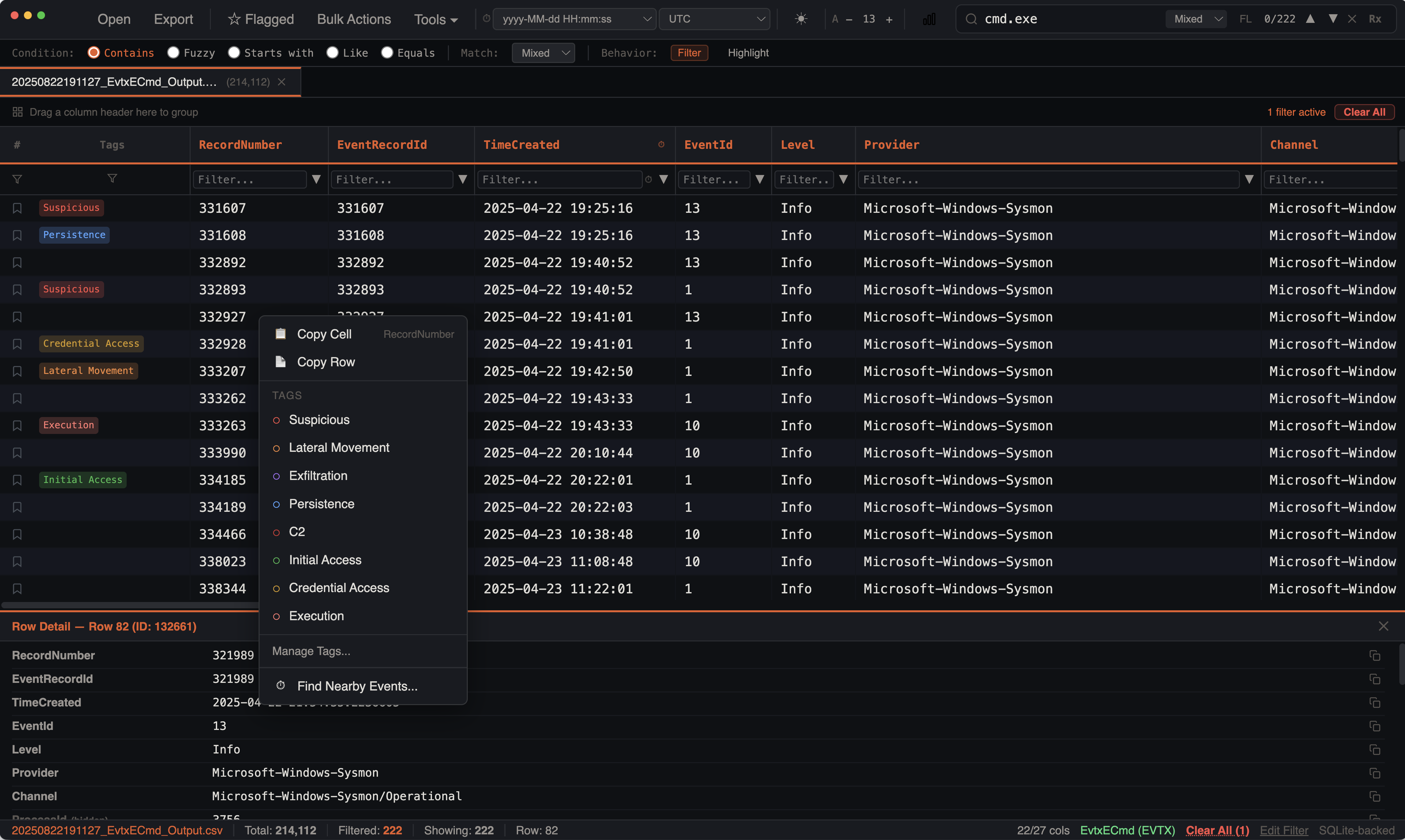
Tags are free-form labels you attach to rows for categorization. Each row can have multiple tags, and tags are color-coded for visual distinction. The Tags column is a full first-class grid column — you can sort, filter, and stack by tags just like any other column.
Adding Tags
Cmd+Clicka row- Select Add Tag
- Type a tag name or choose from presets
- The tag appears as a colored chip in the Tags column
Tag Presets
IRFlow Timeline includes common DFIR investigation tags:
| Tag | Use Case |
|---|---|
| Suspicious | General suspicious activity |
| Lateral Movement | Evidence of movement between hosts |
| Exfiltration | Data exfiltration indicators |
| Persistence | Persistence mechanism installation |
| C2 | Command and control communication |
| Initial Access | Entry point indicators |
| Execution | Malicious execution events |
| Credential Access | Credential harvesting/dumping |
You can also create custom tags — just type any name. IOC Matching automatically creates per-indicator tags (e.g., IOC: cmd.exe, IOC: 185.220.101.34) with orange coloring.
Bulk Tagging
By Time Range:
- Open Actions > Bulk Tag / Bookmark
- Select a start and end timestamp
- Choose or type a tag name
- All rows in the time range receive the tag
This is useful for marking an entire activity window (e.g., "Attacker Active 14:30-15:45").
Removing Tags
Cmd+Clicka tagged row and select Remove Tag- Choose which tag to remove (if multiple)
Tag Colors
Each unique tag is assigned a color from the palette. Colors are consistent within a session and persist when saving/loading sessions.
Tags Column Features
The Tags column behaves as a full grid column with:
- Sorting — click the Tags column header to sort rows by their tag values
- Text filtering — type in the Tags filter cell to search for specific tags using SQL
LIKEmatching - Checkbox filtering — click the dropdown button in the Tags filter cell to select specific tags from a checkbox list
- Stacking —
Cmd+Clickthe Tags header and select Stack Values to see tag frequency distribution - Column Stats — view tag statistics including total tagged rows, unique tags, and top values
- Disable/enable — toggle the tag filter on/off without removing it (shown with strikethrough when disabled)
Filtering by Tag
- Type in the Tags filter cell to filter by tag name
- Use the dropdown checkbox filter to select one or more specific tags
- Click a tag chip in a row to filter to rows with that tag
- Combine tag filters with other filter types
In Reports
HTML reports include:
- Summary count of tagged rows
- Tag breakdown chips showing each tag and its count
- Grouped tables showing rows organized by tag
- Color-coded tag indicators matching the in-app palette