
Lateral Movement Tracing
Lateral movement is one of the most critical phases to reconstruct during an incident response engagement. Once an attacker gains initial access, they typically authenticate to additional systems using stolen credentials, RDP, PsExec, WMI, or SMB to reach high-value targets such as domain controllers and file servers. This guide walks through a systematic approach to mapping that movement across your environment using IRFlow Timeline.
Features Used
- Lateral Movement Tracker -- visualize host-to-host logon connections as a network graph
- Stacking -- frequency analysis to surface unusual logon patterns
- Process Inspector -- trace execution chains spawned after lateral movement
- Bookmarks and Tags -- bulk-tag events across the lateral movement chain
- Color Rules -- highlight logon types and suspicious accounts at a glance
- Search and Filtering -- isolate specific hosts, accounts, and time windows
Key Artifacts
Windows Security Event IDs
| Event ID | Log Channel | Description |
|---|---|---|
| 4624 | Security | Successful logon |
| 4625 | Security | Failed logon attempt |
| 4648 | Security | Logon using explicit credentials (runas, PsExec) |
| 4776 | Security | NTLM credential validation (logged on DC) |
| 4672 | Security | Special privileges assigned to new logon |
RDP-Specific Event IDs
| Event ID | Log Channel | Description |
|---|---|---|
| 1149 | TerminalServices-RemoteConnectionManager | RDP authentication succeeded (source IP logged) |
| 21 | TerminalServices-LocalSessionManager | Session logon succeeded |
| 22 | TerminalServices-LocalSessionManager | Shell start notification |
| 24 | TerminalServices-LocalSessionManager | Session disconnected |
| 25 | TerminalServices-LocalSessionManager | Session reconnected |
Logon Types
| Logon Type | Name | Typical Lateral Movement Technique |
|---|---|---|
| 2 | Interactive | Console logon, unlikely over network |
| 3 | Network | SMB, PsExec (service creation), WMI, PowerShell Remoting |
| 10 | RemoteInteractive | Remote Desktop (RDP) |
| 3 with 4648 | Explicit Credentials | runas /netonly, PsExec with -u flag, scheduled tasks |
Artifact Paths
| Artifact | Path |
|---|---|
| Security EVTX | C:\Windows\System32\winevt\Logs\Security.evtx |
| TerminalServices RCM | C:\Windows\System32\winevt\Logs\Microsoft-Windows-TerminalServices-RemoteConnectionManager%4Operational.evtx |
| TerminalServices LSM | C:\Windows\System32\winevt\Logs\Microsoft-Windows-TerminalServices-LocalSessionManager%4Operational.evtx |
| Sysmon Operational | C:\Windows\System32\winevt\Logs\Microsoft-Windows-Sysmon%4Operational.evtx |
| Prefetch (PsExec) | C:\Windows\Prefetch\PSEXESVC.EXE-*.pf |
Step-by-Step Workflow
1. Load Security and RDP Logs
Import the relevant EVTX logs or their EvtxECmd CSV output into IRFlow Timeline. If you collected from multiple hosts using KAPE, use multi-tab mode to open each host in a separate tab, then merge the tabs into a single unified timeline.
At minimum, include the Security log and both TerminalServices channels from every host in scope. Sysmon logs are strongly recommended for correlating post-logon process execution.
Merge for Full Visibility
Lateral movement is inherently multi-host. Merging logs from the source and destination systems into a single timeline makes it possible to see both sides of each connection in chronological order.
2. Apply Color Rules for Logon Types
Before diving into analysis, set up color rules to visually distinguish logon types at a glance:
| Condition | Suggested Color | Rationale |
|---|---|---|
| EventID = 4624 AND LogonType = 10 | Blue | RDP logon |
| EventID = 4624 AND LogonType = 3 | Green | Network logon (SMB/WMI/PsExec) |
| EventID = 4648 | Amber | Explicit credential usage |
| EventID = 4625 | Red | Failed logon -- may indicate password spraying |
This makes it immediately obvious which rows represent lateral movement when scrolling through the timeline.
3. Stack Logon Activity to Find Anomalies
Open the Stacking panel and analyze the following columns to quickly identify outliers:
- Stack on
TargetUserName-- look for accounts with unusually high logon counts or accounts that should not be authenticating across many systems (e.g., a help desk account appearing on DC01). - Stack on
Computer(destination host) -- identify which systems received the most logon events. A workstation like WS001 receiving hundreds of Type 3 logons from other workstations is abnormal. - Stack on
IpAddress(source) -- a single source IP appearing across many destination hosts may indicate an attacker pivoting from a compromised system. - Stack on
LogonType-- get the overall distribution. A large volume of Type 10 logons during off-hours warrants investigation.
Sort Ascending for Rare Values
Sort stacking results in ascending order to surface values that appear only once or twice. Attackers often leave fewer traces than legitimate services, so rare logon source/destination pairs stand out.
4. Open the Lateral Movement Tracker
Navigate to Tools > Lateral Movement Tracker to open the Lateral Movement Tracker. The tracker automatically parses your logon events and builds an interactive network graph.
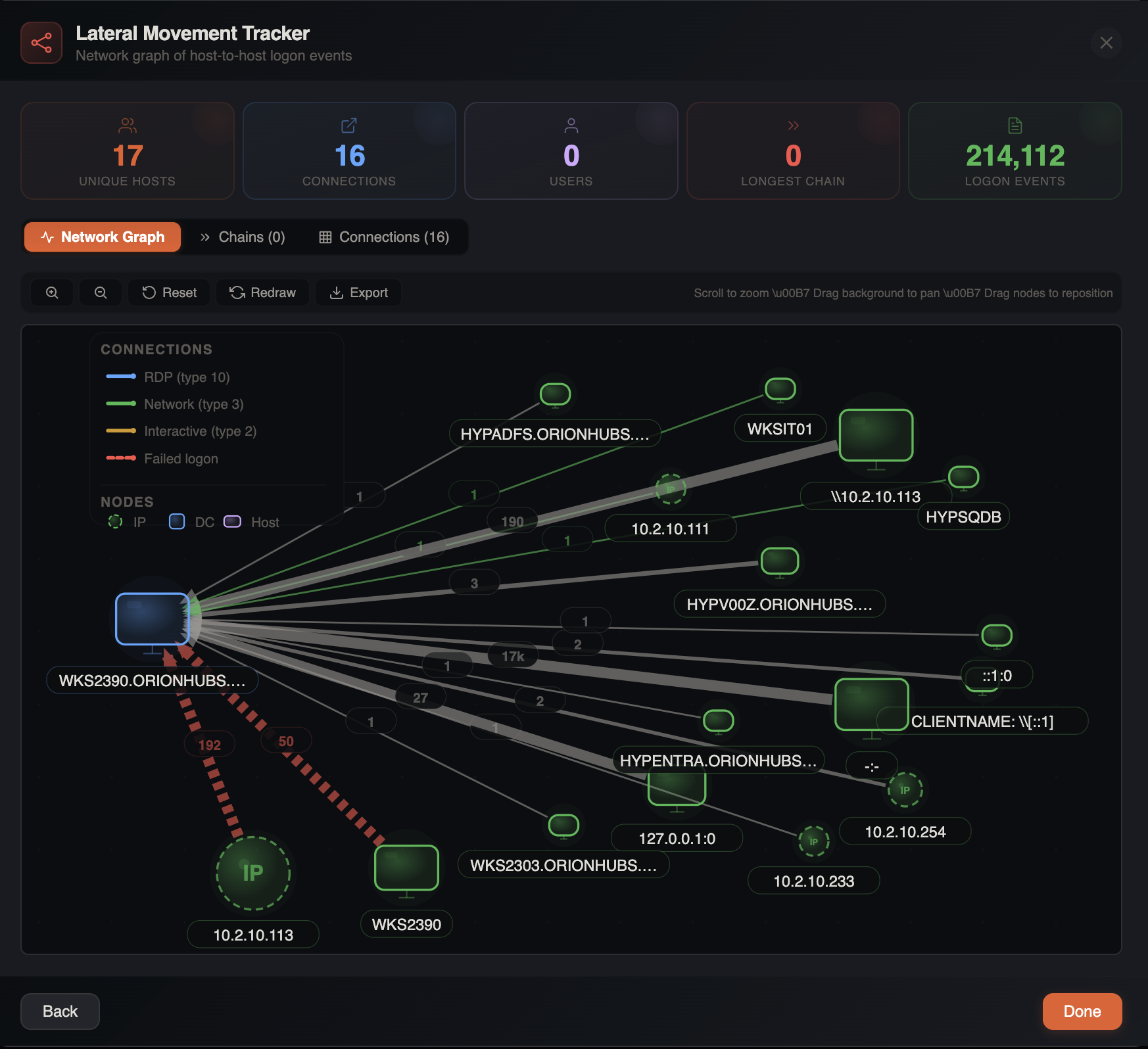
In the graph view:
- Blue edges represent RDP connections (Type 10)
- Green edges represent network logons (Type 3)
- Amber edges represent interactive logons (Type 2)
- Edge labels show the number of logon events between each host pair
- Arrows indicate the direction of authentication (source to target)
The tracker also automatically flags outlier hostnames -- nodes with default Windows names (DESKTOP-XXXXX, WIN-XXXXX), penetration testing distro defaults (KALI, PARROT), or generic/suspicious names (ADMIN, TEST, HACKER). These are highlighted in the graph and often indicate attacker-controlled machines that were never properly renamed.
Look for the following patterns:
| Pattern | Significance |
|---|---|
| WS001 -> DC01 -> FS02 | Multi-hop chain -- attacker pivoted from workstation to DC to file server |
| Single source with many outbound edges | Possible staging host or C2 beachhead |
| Outlier-flagged node with outbound connections | Likely attacker machine -- default/generic hostname not matching environment naming convention |
| Workstation-to-workstation connections | Unusual in most environments -- warrants investigation |
| Bi-directional edges between two hosts | May indicate interactive RDP sessions with file transfers |
5. Trace Multi-Hop Chains
Switch to the Chains sub-tab within the Lateral Movement Tracker. This view automatically detects multi-hop lateral movement paths by linking sequential logon events.
A typical attacker chain might appear as:
WS001 → WS014 → DC01 → FS02This tells you the attacker moved from their initial foothold (WS001) through an intermediate workstation, then to the domain controller, and finally to the file server -- a pattern consistent with credential harvesting on the DC followed by data access on FS02.
Correlate Chains with Time
Click on any chain to filter the main grid to those events. Verify that the timestamps follow a logical progression. If the logon on DC01 occurred 3 minutes after the logon on WS014, this supports a deliberate lateral movement sequence rather than coincidental service account activity.
6. Identify the Lateral Movement Technique
Once you have identified suspicious host-to-host connections, filter the main grid to events between those hosts and determine the technique:
PsExec indicators:
- Event ID 4648 (explicit credentials) on the source host
- Event ID 4624 with LogonType 3 on the destination host
- Event ID 7045 (new service installed) for
PSEXESVCon the destination - Sysmon Event ID 1 showing
PSEXESVC.EXEspawningcmd.exeorpowershell.exe
WMI indicators:
- Event ID 4624 with LogonType 3 on the destination host
- Sysmon Event ID 1 showing
WmiPrvSE.exeas parent process - The spawned process runs under the remote user's context
RDP indicators:
- Event ID 4624 with LogonType 10 on the destination host
- Event ID 1149 in TerminalServices-RemoteConnectionManager
- Events 21, 22 in TerminalServices-LocalSessionManager
- Events 24, 25 if the session was disconnected and reconnected
SMB / net use indicators:
- Event ID 4624 with LogonType 3
- Event ID 5140 (network share accessed) on the destination
- No corresponding service installation or process creation
7. Examine Post-Logon Execution with Process Inspector
For each destination host where lateral movement was confirmed, open the Process Inspector and filter to the relevant time window. Focus on:
- Processes spawned by
PSEXESVC.EXE-- these are the commands the attacker ran via PsExec - Child processes of
WmiPrvSE.exe-- commands executed via WMI - Processes launched within the RDP session (typically under
explorer.exefor the logged-on user) - Any LOLBin execution (highlighted in orange by the Process Inspector) shortly after the lateral logon event
This reveals what the attacker did after arriving on each host -- credential dumping, reconnaissance, staging tools, or accessing sensitive data.
8. Bulk-Tag the Lateral Movement Chain
Once you have mapped the full lateral movement path, select all related events across the chain and use Bulk Tagging to label them consistently:
- Tag source-side events (e.g., 4648 on WS001) with
lateral-movement-source - Tag destination-side logon events (e.g., 4624 on DC01) with
lateral-movement-destination - Tag post-logon execution events with
post-lateral-execution - Tag credential harvesting evidence (e.g., LSASS access) with
credential-access
This structured tagging ensures that when you build your final report, every event in the lateral movement chain is accounted for and can be exported cleanly.
Use Consistent Tag Naming
Establish a tag naming convention early in the investigation. Tags like lat-move-1, lat-move-2 for each distinct hop make it easy to reconstruct the sequence during report writing and peer review.
9. Correlate with Failed Logons
Do not overlook Event ID 4625 (failed logons). Filter for failed logons originating from the same source hosts identified in your lateral movement chain. Patterns to watch for:
- A burst of 4625 events followed by a 4624 -- indicates password guessing or credential testing before a successful logon
- Failed logons to many hosts from a single source -- the attacker is probing for access across the network
- Failed logons using multiple accounts -- credential spraying with a harvested account list
Use the Histogram to visualize the frequency of failed versus successful logons over time. A spike in 4625 events immediately before lateral movement is a strong indicator of active credential testing.
10. Document Source-Destination Pairs
As a final step, switch to the Connections sub-tab in the Lateral Movement Tracker to get a tabular summary of every source-destination-user-logontype combination. Export this table as part of your case documentation.
A properly documented lateral movement table should include:
| Timestamp (UTC) | Source Host | Destination Host | Account | Logon Type | Technique | Tag |
|---|---|---|---|---|---|---|
| 2026-02-24 02:14:33 | WS001 (10.1.2.50) | WS014 | CORP\jsmith | 10 (RDP) | RDP | lat-move-1 |
| 2026-02-24 02:31:07 | WS014 (10.1.2.64) | DC01 | CORP\admin_js | 3 (Network) | PsExec | lat-move-2 |
| 2026-02-24 02:44:52 | DC01 (10.1.1.10) | FS02 | CORP\admin_js | 3 (Network) | SMB | lat-move-3 |
Next Steps
- Malware Execution Analysis -- trace what the attacker deployed after moving laterally
- Persistence Hunting -- check each host in the chain for persistence mechanisms
- Brute Force and Account Compromise -- deeper analysis of credential attacks that enabled the lateral movement
- Ransomware Investigation -- if lateral movement led to ransomware deployment across the domain
- Building a Final Report -- compile your tagged lateral movement chain into a deliverable report