
Bookmarks & Tags
Bookmarks and tags are the core annotation tools for building your investigation narrative within IRFlow Timeline.
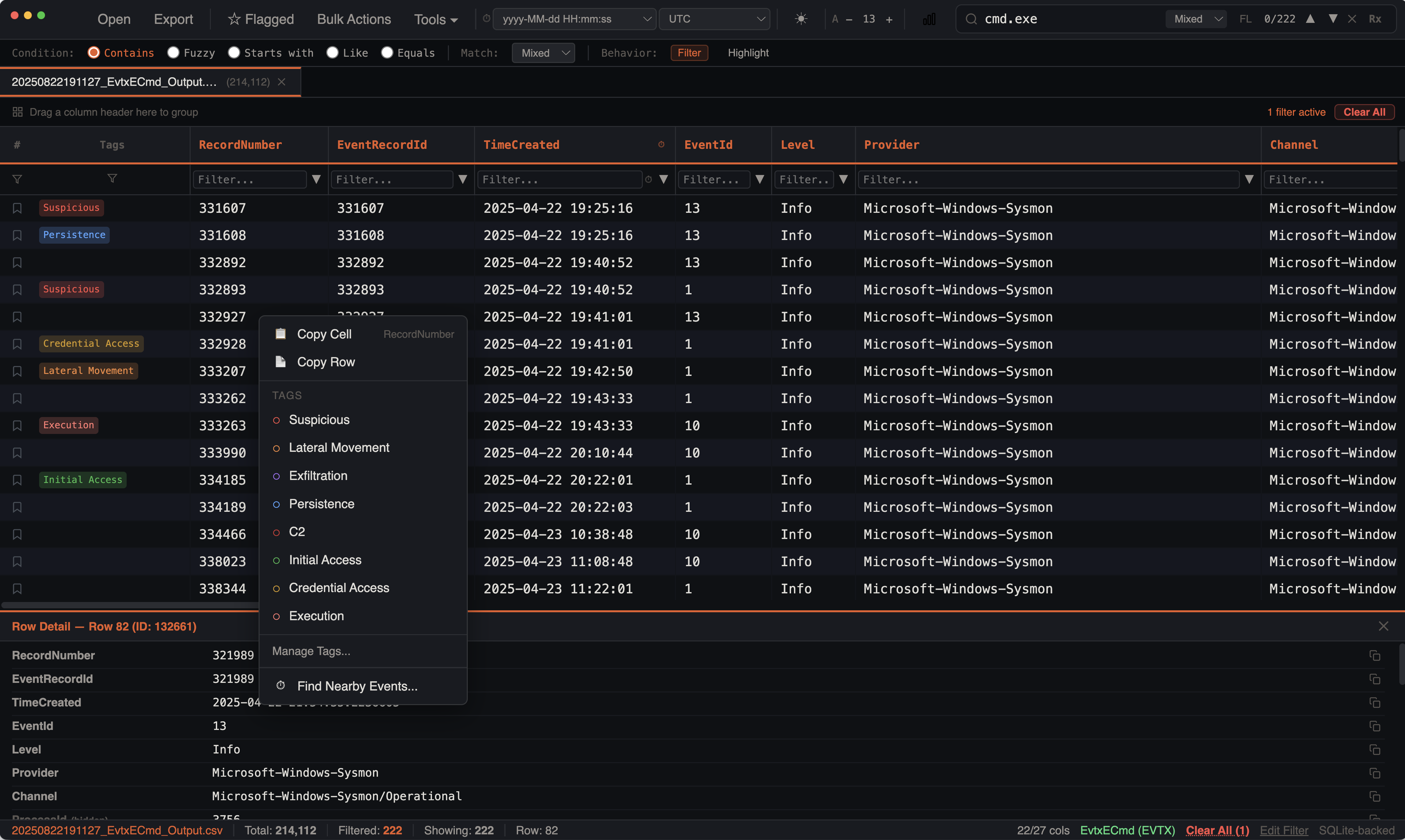
Bulk annotation: Actions → Bulk Tag / Bookmark. Per-row tags also appear in the right-click / Cmd+Click context menu.
Bookmarks
Bookmarks let you flag individual rows as important for later review and reporting.
Adding Bookmarks
- Click the star icon on any row to toggle its bookmark
Cmd+Clicka row and select Bookmark- Bookmarks are stored per-tab in the SQLite database
Bulk Bookmarking
- Select rows, then click Tag / bookmark in the selection bar — or open Actions → Bulk Tag / Bookmark and choose a scope (see Bulk Actions)
- Or
Cmd+Clicka row and use the bookmark option in the context menu
Viewing Bookmarks
- Toggle
Cmd+Bto show only bookmarked rows - The tab badge shows the bookmarked row count
- Bookmarked rows display a filled star icon in the grid
In Reports
Bookmarked rows are included in HTML reports with their full data. They appear in a dedicated "Bookmarked Events" section.
Tags
Tags are free-form labels you attach to rows for categorization. Each row can have multiple tags, and tags are color-coded for visual distinction. The Tags column is a full first-class grid column — you can sort, filter, and stack by tags just like any other column.
Adding Tags
- Right-click a row to open the context menu
- Hover over Tags ▸ to expand the tag submenu
- Click a tag to toggle it on or off
- The tag appears as a colored chip in the Tags column
Multi-Row Tagging
Select multiple rows using checkboxes, then open the context menu on any row inside that selection. The Tags ▸ item shows the count it will affect (e.g. "Tags (4 rows)").
The row you clicked is the anchor. Its ● / ○ state decides the direction, and that one direction is applied to every selected row — so clicking a tag marked ○ applies it everywhere, and clicking one marked ● removes it everywhere. Rows that already matched are left as they are rather than being flipped.
This works with the header select-all checkbox too: the whole filtered population is tagged in SQL, honouring any rows you deselected. Opening the menu on a row outside the selection targets just that row.
Keyboard Tagging
Cmd+Shift+1 through Cmd+Shift+9 apply the first nine palette tags to the current selection, using the same scope rules as the context menu. Faster than the two-level menu when you are working through a long list.
Tag Presets
IRFlow Timeline includes common DFIR investigation tags:
| Tag | Use Case |
|---|---|
| Suspicious | General suspicious activity |
| Lateral Movement | Evidence of movement between hosts |
| Exfiltration | Data exfiltration indicators |
| Persistence | Persistence mechanism installation |
| C2 | Command and control communication |
| Initial Access | Entry point indicators |
| Execution | Malicious execution events |
| Credential Access | Credential harvesting/dumping |
You can also create custom tags — just type any name. IOC Matching automatically creates per-indicator tags (e.g., IOC: cmd.exe, IOC: 185.220.101.34) with orange coloring.
Bulk Actions
Open Actions → Bulk Tag / Bookmark, or click Tag / bookmark in the selection bar. Both open the same dialog.
Choose the scope first. The dialog leads with three options, each showing its true row count:
| Scope | Writes to |
|---|---|
| Selected rows | Only the rows you selected (the default whenever a selection exists) |
| Filtered view | Every row matching the current filters |
| Entire tab | Every row in the file |
Counts are resolved in SQLite against the exact query the write will use, so the number shown is the number affected. If nothing narrows the scope — no selection and no active filter — the dialog warns you and asks for confirmation before writing to the whole tab.
Bulk Tagging:
- Enter a tag name, or click one of the existing-tag chips (each shows how many rows already carry it)
- Pick a tag color
- Click Apply to add the tag, or Remove to take it off the rows in scope
Bulk Bookmarking:
Click ★ Bookmark or ☆ Remove bookmarks. Removing is always allowed; adding to an unscoped view asks for confirmation first.
By Time Range:
Tags can also be applied by time range from other tools:
- Histogram sessions — tag all rows in a detected session window
- Burst detection — tag rows in identified burst periods
- Heatmap windows — tag rows from file activity heatmap time ranges
This is useful for marking an entire activity window (e.g., "Attacker Active 14:30-15:45").
Auto-Tags from Analysis Tools:
Several analysis tools automatically create bulk tags:
Timestomp Indicator— from timestomping detectionDownloaded— from ADS Zone.Identifier analysisEncrypted,Ransom Note,Payload— from ransomware analysisModified Burst,Created Burst— from burst detectionIOC: {value}— from IOC matchingVT: Malicious,VT: Suspicious,VT: Clean— from VirusTotal enrichment
Removing Tags
- Open the row context menu, hover Tags ▸, and click any tag showing ● to remove it
- The submenu lists tags the row actually carries even if they are not in your palette — auto-tags such as
IOC: …,VT: …and Sigma rule tags can be removed the same way - To take a tag off many rows at once, use Remove in Bulk Tag / Bookmark, or delete the tag outright in Manage Tags
Managing Tags
Tags → Manage Tags, or Manage Tags… at the bottom of the Tags submenu. The list is read live from the database, so it shows every tag in the tab — including ones created by analysis tools — with the number of rows carrying each.
- Row count — click it to filter the grid to those rows. Tags you have defined but never applied show as unused
- Rename — renaming onto an existing tag merges the two; rows carrying both collapse to one
- Delete (✕) — removes the tag from every row that carries it, after telling you how many. A tag filter pointing at the deleted tag is cleared so the grid does not go blank
- Merge look-alikes — when tags differ only by capitalisation or spacing ("Suspicious" / "suspicious" / "Suspicious "), a banner offers to collapse each group into its most-used spelling
- Color — the swatch sets the chip color used in the grid and in HTML reports
Creating a tag here only defines it. No rows are tagged until you apply it from the row menu or Bulk Tag / Bookmark.
Tag Colors
New tags are assigned a color from the palette; change any of them from the swatch in Manage Tags. Colors are consistent within a session and persist when saving/loading sessions.
Tags Column Features
The Tags column behaves as a full grid column with:
- Sorting — click the Tags column header to sort rows by their tag values
- Text filtering — type in the Tags filter cell to search for specific tags using SQL
LIKEmatching - Checkbox filtering — click the dropdown button in the Tags filter cell to select specific tags from a checkbox list
- Stacking —
Cmd+Clickthe Tags header and select Stack Values to see tag frequency distribution - Column Stats — view tag statistics including total tagged rows, unique tags, and top values
- Disable/enable — toggle the tag filter on/off without removing it (shown with strikethrough when disabled)
Filtering by Tag
- Type in the Tags filter cell to filter by tag name
- Use the dropdown checkbox filter to select one or more specific tags
- Click a tag chip in a row to filter to rows with that tag
- Combine tag filters with other filter types
In Exports
CSV, TSV and XLSX exports of the filtered view append two columns when the tab carries any annotation:
- Tags — every tag on the row, semicolon-separated and alphabetically ordered
- Bookmarked —
Yesfor bookmarked rows, empty otherwise
Untriaged tabs export exactly as before, with no extra columns.
In Reports
HTML reports include:
- Summary count of tagged rows
- Tag breakdown chips showing each tag and its count
- Grouped tables showing rows organized by tag
- Color-coded tag indicators matching the in-app palette
See Also
- Color Rules — conditional formatting to visually highlight patterns
- IOC Matching — auto-creates per-IOC tags on matched rows
- NTFS Analysis — auto-tags timestomped files, ADS entries, and ransomware indicators
- Export & Reports — tagged rows appear grouped in HTML reports
- Sessions — bookmarks and tags persist across session save/restore