
IOC Matching
IRFlow Timeline can scan your timeline data for Indicators of Compromise (IOCs), automatically identifying network indicators, file hashes, host artifacts, and other forensic artifacts across all columns. Matched IOCs are highlighted inline in the data grid and auto-tagged per indicator for immediate filtering.
Opening IOC Matching
- Menu: Actions → IOC Matching
Supported IOC Types
IOC types are auto-detected from the input using an ordered pattern-matching system. The first matching pattern wins, with more specific patterns evaluated before general ones:
Hash Indicators
| Type | Pattern | Example |
|---|---|---|
| SHA256 Hash | 64-character hex | e3b0c44298fc1c149afbf4c8996fb924... |
| SHA1 Hash | 40-character hex | da39a3ee5e6b4b0d3255bfef95601890afd80709 |
| MD5 Hash | 32-character hex | d41d8cd98f00b204e9800998ecf8427e |
Network Indicators
| Type | Pattern | Example |
|---|---|---|
| IPv4 Address:Port | IP with port | 192.168.1.100:8080 |
| IPv6 Address:Port | IPv6 with port | [::1]:443 |
| IPv4 Address | Dotted notation with optional CIDR | 192.168.1.100, 10.0.0.0/24 |
| IPv6 Address | Full and compressed notation | fe80::1, 2001:db8::1 |
| Email Address | Standard email format | attacker@evil.com |
| Crypto Wallet | Bitcoin, Ethereum, Monero addresses | bc1q..., 0x... |
| User Agent String | Mozilla/ prefix | Mozilla/5.0 (Windows NT... |
| Domain Name | FQDN patterns (auto-disambiguated) | evil.example.com |
Host Artifacts
| Type | Pattern | Example |
|---|---|---|
| Registry Key | HKLM, HKCU, HKEY_* paths | HKLM\SOFTWARE\Microsoft\... |
| Named Pipe | \\.\pipe\ prefix | \\.\pipe\evil_pipe |
| Mutex | Global\ or Local\ prefix | Global\MyMutex |
| File Path | Windows or Unix paths with separators | C:\Temp\malware.exe, /tmp/payload |
| File Name | Executable/document filenames | svchost_update.dll, payload.ps1 |
File Name vs Domain Disambiguation
Values that could be either a filename or a domain (e.g., svchost.com) are resolved using a curated extension list. Extensions that are never TLDs (.exe, .dll, .ps1, .evtx, .docx, etc.) are always classified as File Name. Ambiguous extensions (.com, .net, .io, .sh, etc.) use heuristics — values with underscores in the base name are classified as filenames, while valid domain patterns are classified as domains.
A category breakdown badge displays the count per detected type before you run the scan.
How to Use
Load IOC List
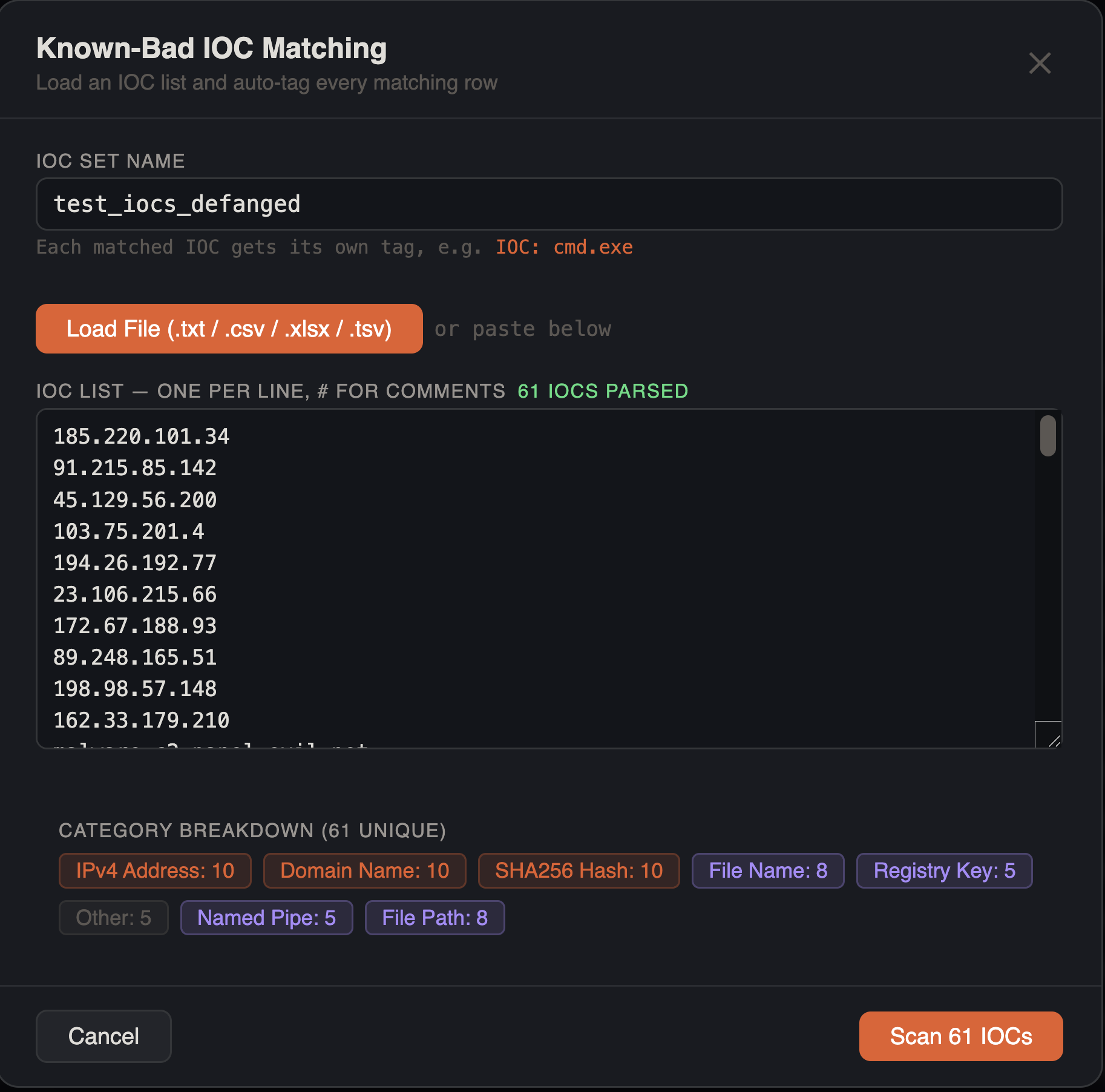
Two methods to input IOCs:
File load — click the load button to select a file. Supported formats:
| Format | Handling |
|---|---|
.txt, .ioc | Raw text, one IOC per line |
.csv | Auto-detects structured data with headers; extracts IOC value column if found |
.tsv | Tab-separated; same structured detection as CSV |
.xlsx, .xls | Excel spreadsheets; scans all sheets for structured IOC data |
For structured files (CSV, TSV, XLSX), the loader searches for a recognized header column (ioc_value, ioc, indicator, value, observable, artifact, indicator_value, observable_value, ioc_data, data, or pattern) and extracts only that column. If no recognized header is found, all cell values are extracted.
The IOC set name is auto-derived from the filename.
Paste — paste IOCs directly into the text area, one per line. Comments are supported:
# Q1 Threat Intel IOCs
192.168.1.100
evil.example.com    # C2 domain
d41d8cd98f00b204e9800998ecf8427e
C:\Temp\malware.exe
Lines starting with # and inline # comments are stripped. Duplicate values (case-insensitive) are automatically removed.
Automatic Defanging
IOC values are automatically un-obfuscated before scanning. The defanging engine handles:
| Input | Cleaned Output |
|---|---|
hxxps[://]evil[.]com/path | evil.com |
evil[dot]com | evil.com |
evil(.)com | evil.com |
user[@]evil.com | user@evil.com |
192.168.1[:]8080 | 192.168.1:8080 |
hxxp://evil.com/payload.exe | evil.com |
evil.com. (FQDN trailing dot) | evil.com |
URL paths, query strings, and fragments are stripped — only the domain (and optional port) is kept. Protocol prefixes (http://, https://, ftp://, hxxp://, hxxps://) are removed. After loading a file, the defanged values are shown in the textarea so you can verify the results before scanning.
IOC Set Name
Optionally name your IOC set. This name is used for display in the results panel.
Run Scan
Click Match to scan. Progress is shown with a three-phase pipeline indicator (Scanning → Tagging → Refreshing) and a batch progress bar.
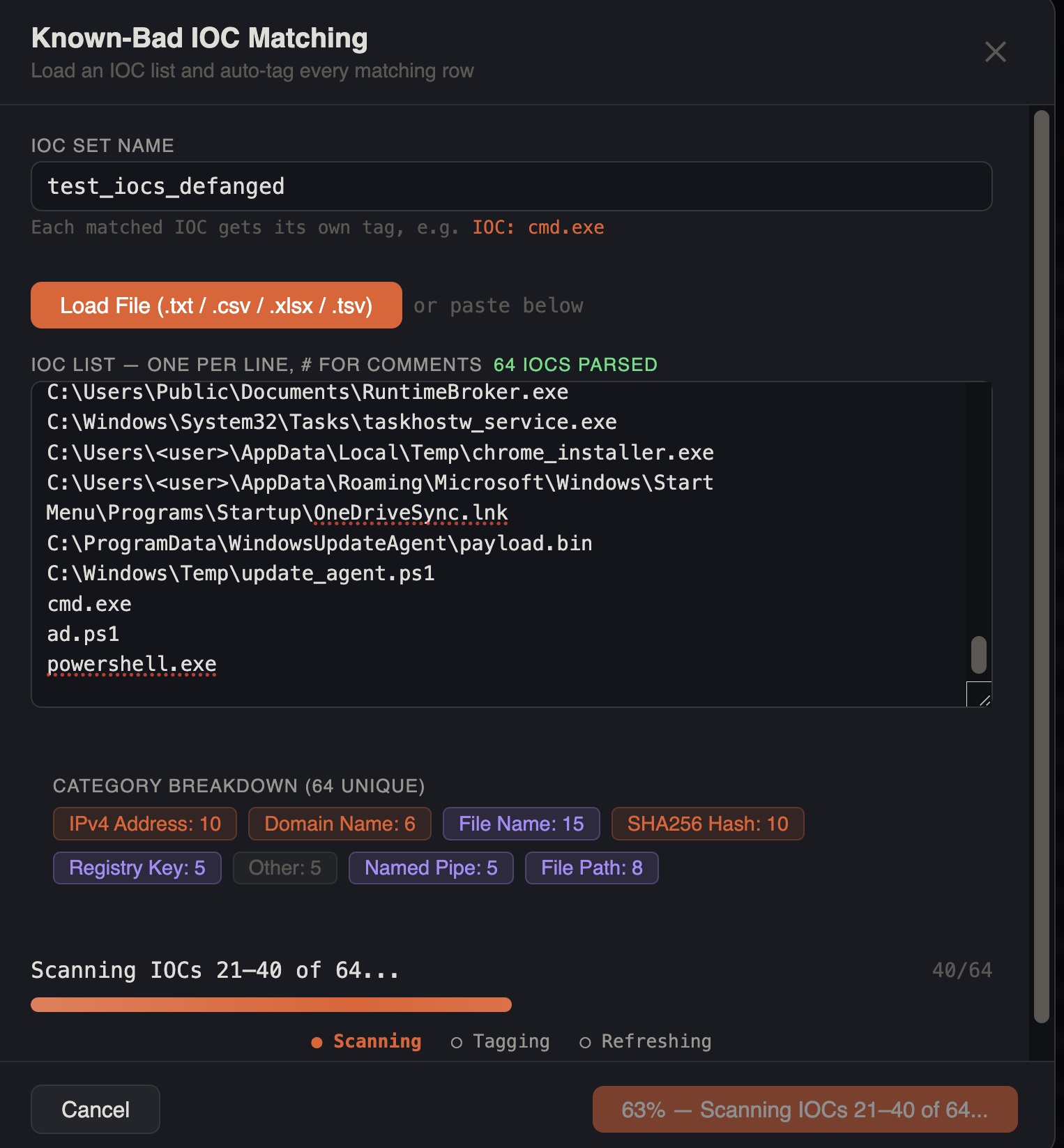
| Phase | Progress | Description |
|---|---|---|
| Scanning | 0–80% | IOCs are processed in batches of 20 against the database |
| Tagging | 80–90% | Per-IOC tags are applied to all matched rows |
| Refreshing | 90–100% | Grid data is reloaded with new tags and highlights |
The matching engine works in two phases:
- Batched REGEXP scan — IOCs are grouped into batches of 200 and combined into alternation patterns (
pattern1|pattern2|...). Each batch runs a single SQL query testing all columns withREGEXP, collecting matching row IDs - Per-IOC hit counting and row mapping — matched rows are fetched in 500-row batches and each IOC pattern is tested individually (case-insensitive regex) against all columns to count hits per indicator and map which IOCs matched which rows
Results
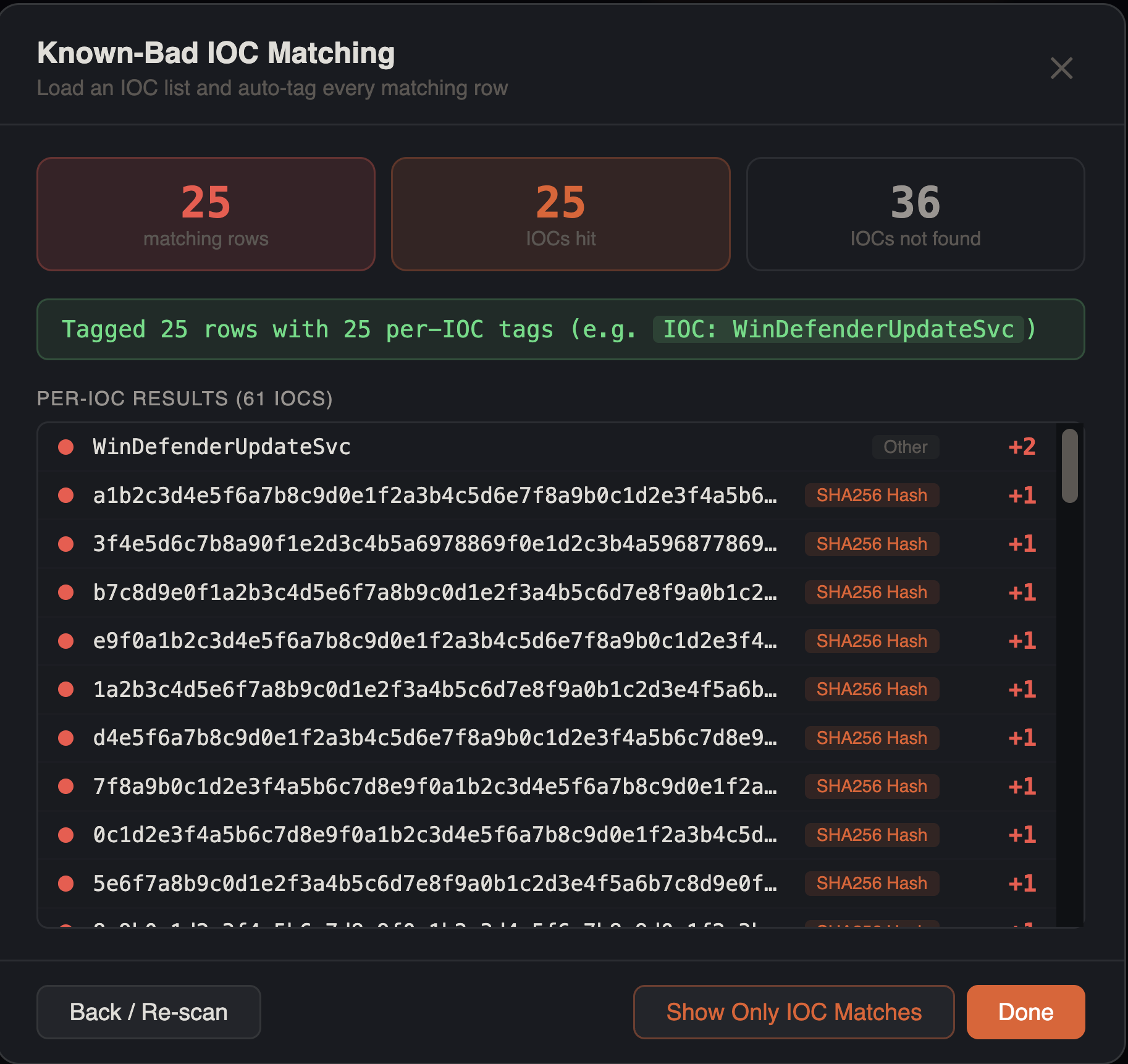
Summary cards display three metrics:
- Matching rows — total rows with at least one IOC hit (red if any found)
- IOCs hit — number of IOC patterns that matched at least one row (orange if any found)
- IOCs not found — number of IOC patterns with zero matches
Per-IOC results list shows every indicator sorted by hit count (highest first):
- IOC value with color-coded category label (network=accent, hash=warning, host=purple)
- Hit count (red for matches, muted dash for zero)
Per-IOC Tagging
Each matched IOC automatically receives its own tag applied to every row it matched. Tag names follow the format IOC: {value} — for example, IOC: cmd.exe, IOC: 185.220.101.34, IOC: evil.com. All IOC tags are colored orange (#f0883e).
This means a single row can receive multiple IOC tags if it matched multiple indicators, giving you precise per-indicator filtering and reporting.
Inline Grid Highlighting
After a scan, all matched IOC values are highlighted inline in the data grid with an orange semi-transparent background and bold text. This highlighting works alongside search highlighting — when both are active, IOC matches appear in orange and search matches appear in yellow/amber.
IOC highlights are sorted longest-first to prevent shorter IOC substrings from stealing matches from longer values. A badge in the status bar shows the number of active IOC highlights and can be clicked to clear them.
Post-Scan Actions
After matching:
- Show Only IOC Matches — filters the grid to show only rows tagged with any IOC tag
- Back / Re-scan — return to the input view to modify the IOC list and run again
- Done — close the modal and keep the tags and highlights active
Tips
Threat Intel Integration
Import IOC lists from threat feeds (STIX, CSV, XLSX) by loading the file directly — the structured file parser auto-detects the IOC value column. No manual reformatting needed.
Combine with Histogram
After matching IOCs, use the timeline histogram to see when IOC-related events cluster. This helps establish the attack timeline.
False Positives
Review matches in context. Common internal IPs or system paths may match IOC patterns. Use the grid's full row detail to verify each match before escalating.
Defanged IOC Lists
Paste IOC lists directly from threat intel reports — defanged notation like hxxps[://], [.], and [dot] is automatically cleaned before scanning.
VirusTotal Enrichment
Enrich matched IOCs with VirusTotal reputation data. After running an IOC scan, you can look up individual indicators or enrich all matched IOCs in bulk.
API Key Setup
- In the IOC Matching modal, expand the VirusTotal section
- Enter your VirusTotal API key (free or premium)
- Configure rate limiting and cache settings:
| Setting | Options | Default |
|---|---|---|
| Rate limit | 4, 8, 12, 16 requests/minute | 4 req/min (free tier) |
| Cache TTL | 1 hour, 6 hours, 12 hours, 24 hours, 48 hours, 7 days | 24 hours |
Your API key is stored locally and never transmitted except to the VirusTotal API.
Single Lookup
Right-click any cell and select Lookup on VirusTotal to query a single indicator. Results open in your browser on virustotal.com.
| Indicator Type | VirusTotal URL |
|---|---|
| SHA256 / SHA1 / MD5 | virustotal.com/gui/file/{hash} |
| Domain | virustotal.com/gui/domain/{domain} |
| IPv4 / IPv6 | virustotal.com/gui/ip-address/{ip} |
Bulk Lookup
After an IOC scan, click Enrich N IOCs with VirusTotal to look up all VT-compatible indicators that matched timeline rows. By default, only IOCs with timeline hits are enriched to conserve API quota. Enable Include unmatched IOCs to enrich all compatible indicators regardless of hit count.
Progress is shown inline as each IOC is processed. A Cancel button stops in-flight lookups. Equivalent IOCs (e.g., 1.2.3.4:80 and 1.2.3.4:443) are deduplicated so only one API call is made per unique object.
Persistent Cache
Results are cached in a local SQLite database (vt-cache.db) to avoid redundant API calls. The cache key normalizes hashes to lowercase, domains to lowercase, and strips ports from IP:Port values. Cached results are returned instantly on subsequent lookups until the configured TTL expires.
Verdict Badges
After enrichment, a VT column appears in the data grid showing color-coded verdict badges:
| Verdict | Color | Meaning |
|---|---|---|
| Malicious | Red | Flagged as malicious by multiple engines |
| Suspicious | Yellow | Flagged as suspicious by some engines |
| Clean | Green | No detections |
Click a badge to open the indicator's VirusTotal page. Hover to see all matched IOCs and their individual verdicts.
The VT column supports sorting (malicious first) and filtering — use the column dropdown to filter by verdict.
Auto-Tagging
After enrichment completes, rows are automatically tagged with their VT verdict (VT: Malicious, VT: Suspicious, or VT: Clean). This enables immediate filtering via the VT column dropdown and ensures sort-by-verdict works without manual steps. The Tag by Verdict button is still available for manual re-tagging.
See Also
- Bookmarks & Tags — IOC matches auto-create per-IOC tags for categorization
- Process Inspector — trace processes associated with matched indicators
- Lateral Movement Tracker — correlate network IOCs with lateral movement patterns
- Persistence Analyzer — match persisted executables against your IOC list
- NTFS Analysis — sweep extracted file names and paths against IOC lists