
Auto Update
IRFlow Timeline now supports in-app macOS updates with electron-updater.
User flow
- First install still happens from the DMG
- Packaged builds check for updates automatically a few seconds after launch
- Users can also trigger Help → Check for Updates… from the in-app menu bar
- Downloaded updates install on restart
Check for Updates
The manual check lives under Help in the menu bar:
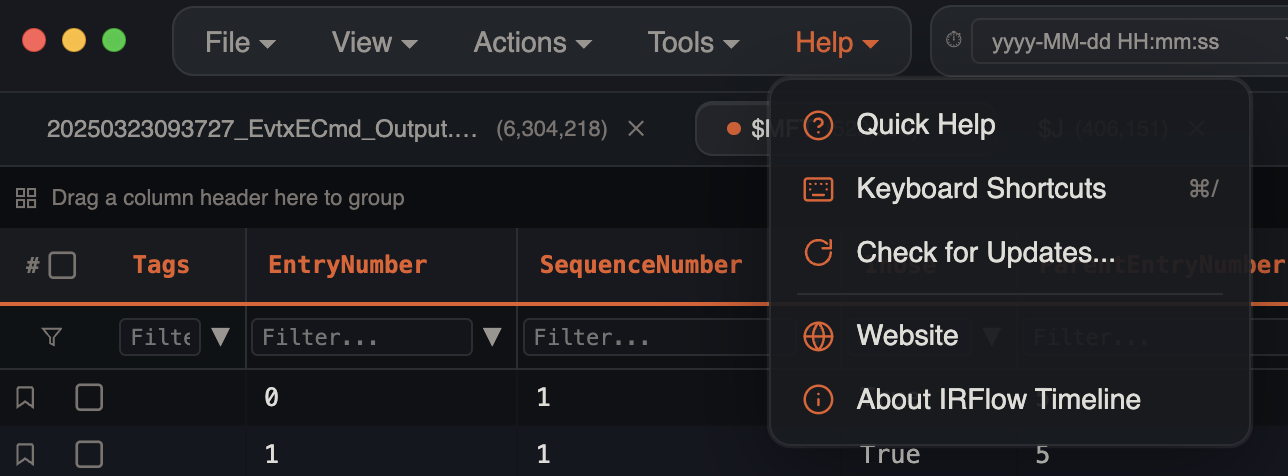
Selecting Check for Updates… opens an in-app status popup that reports whether you are up to date, shows download progress when an update is available, and prompts you to restart when the package is ready to install.
The version and message in that popup come from the configured release feed, so they change with each published release.
Generic HTTPS Feed
Builds now use electron-builder.config.cjs, which adds a generic publish provider only when an environment variable is present.
Required environment variables for a release build:
IRFLOW_UPDATE_BASE_URL=https://downloads.example.com/irflow-timeline- Optional:
IRFLOW_UPDATE_CHANNEL=latest
Example:
export IRFLOW_UPDATE_BASE_URL="https://downloads.example.com/irflow-timeline"
export IRFLOW_UPDATE_CHANNEL="latest"
npm run dist:release
That build produces updater metadata inside the app bundle and release artifacts in release/.
Build Modes
Use these two commands for different goals:
npm run dist:releaseReal release build. This is the one you use for production DMGs and in-app updates. It should run in an environment where code signing and notarization are available.npm run dist:smokeLocal packaging smoke test. This intentionally disables code signing discovery and skips notarization. Use it only to confirm the app packages and generates.dmg,.zip, andlatest-mac.yml.
For a real local release build with the updater feed embedded:
export IRFLOW_UPDATE_BASE_URL="https://downloads.example.com/irflow-timeline"
export IRFLOW_UPDATE_CHANNEL="latest"
npm run dist:release
What To Upload
For each macOS release, upload these files to the HTTPS/CDN path referenced by IRFLOW_UPDATE_BASE_URL:
- The
.zipartifact - The
.dmgartifact - The matching
.zip.blockmapand.dmg.blockmapartifacts latest-mac.ymlfor the default channel, or<channel>-mac.ymlfor a custom channel
Requirements:
- The app must be signed and notarized
- The hosted files must be reachable over HTTPS
- The
.zip, its exact.zip.blockmap, andlatest-mac.ymlmust stay together at the same feed root for differential updates
Release Automation
The repo now includes a tag-driven GitHub Actions workflow at .github/workflows/release-macos.yml.
After one-time setup, your normal release flow becomes:
- Commit your code changes
- Bump
package.jsonto the new app version - Create a matching git tag such as
v1.2.3 - Push the branch and tag
- GitHub Actions builds the signed/notarized macOS release, uploads the
.dmg,.zip, and update metadata to both GitHub Releases and your generic HTTPS feed - Users receive the update in-app
Important:
- The git tag must match
package.json, for examplepackage.json: 1.2.3requires tagv1.2.3 - Uploading only a new DMG is not enough for in-app updates
- The workflow publishes the
.zipandlatest-mac.ymlthatelectron-updateractually uses
One-Time GitHub Setup
Repository variables:
IRFLOW_UPDATE_BASE_URLIRFLOW_UPDATE_BUCKETIRFLOW_UPDATE_PREFIXAWS_REGION- Optional:
IRFLOW_UPDATE_CHANNEL - Optional:
AWS_ENDPOINT_URL_S3
Repository secrets:
AWS_ACCESS_KEY_IDAWS_SECRET_ACCESS_KEYCSC_LINKCSC_KEY_PASSWORDAPPLE_IDAPPLE_APP_SPECIFIC_PASSWORDAPPLE_TEAM_ID
Notes:
CSC_LINKshould point to your macOS signing certificate in a format supported byelectron-builderAWS_ENDPOINT_URL_S3allows the same workflow to target S3-compatible storage such as Cloudflare R2IRFLOW_UPDATE_BASE_URLmust match the public HTTPS path that serves the files uploaded toIRFLOW_UPDATE_BUCKETandIRFLOW_UPDATE_PREFIX
Example Release
# after committing changes
npm version patch
git push
git push --follow-tags
That tag push triggers the macOS release workflow automatically.
Local Testing
To test updater behavior in development, create dev-app-update.yml in the project root:
provider: generic
url: https://downloads.example.com/irflow-timeline
channel: latest
updaterCacheDirName: irflow-timeline-updater
Then run a packaged build against a real hosted feed and verify:
- Startup update detection
- Manual Help → Check for Updates… (see screenshots above)
- Popup progress during download and restart install prompt